Clone of How to activate the URKUND plagiarism system from the task activity?
This quick guide shows the process to follow to activate the URKUND plagiarism detection system that is installed in the Task activity of the Campus Virtual UB:
1. Creation and configuration of a Task activity (with document submission).
2. Delivery of the submission and sending it to URKUND.
3. Reception of the result of the analysis.
4. Particularity of configuration of an online task activity (without sending a document).
5. Delete documents from the Urkund analysis space.
1. Creation and configuration of a Task activity:
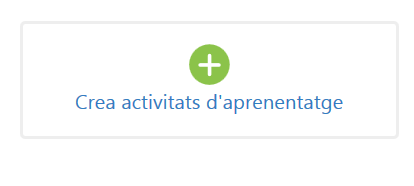
a. Create a new learning activity:
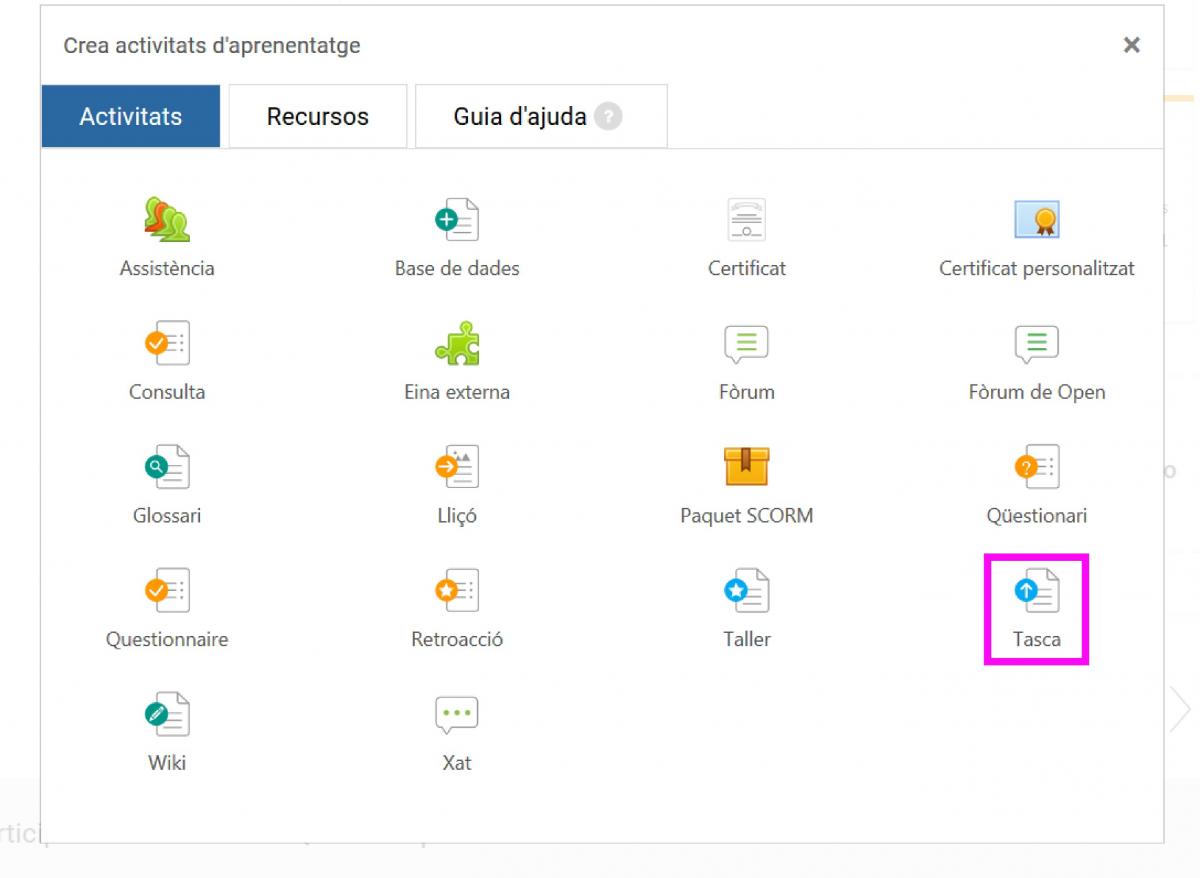
b. Choose task in the menu of learning activities:
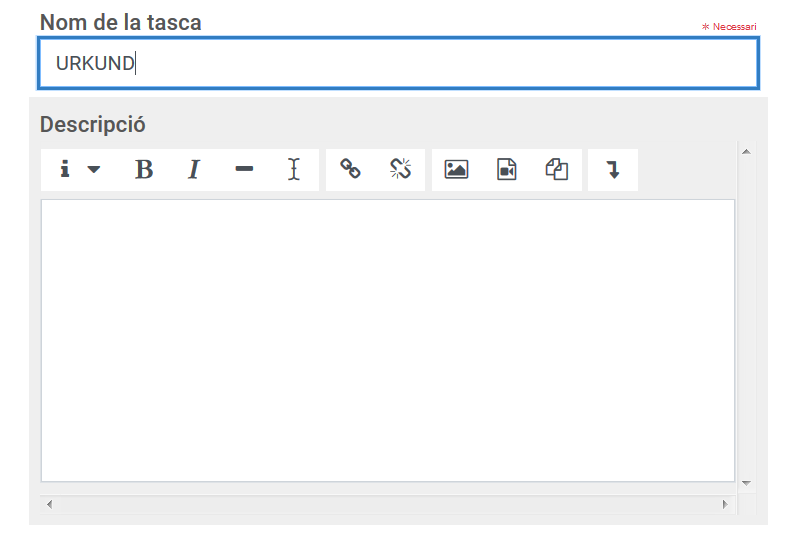
c. Write the name of the task:
d. On the right hand side scroll down and click on URKUND plagiarism connector and display the different possibilities available if you want to make modifications:
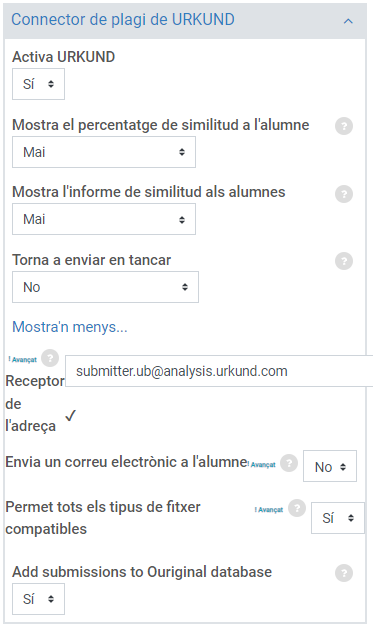
In the section Add submissions to the Ouriginal database you have to know that:
- If you tick Yes, the submissions will be added to the Ouriginal database for future comparisons
- If you tick No, the document will be deleted from the Original database after the system finishes the analysis.
2. Submission and sending to URKUND:
Students, when entering the task to submit their file, will see the warning:
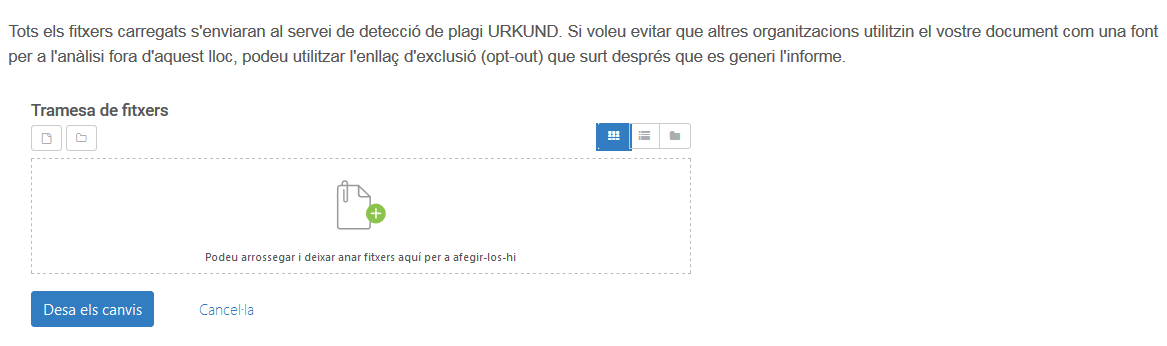
If checked, the document will be used for comparative analyses, but the text detail will not be shown (it will be kept hidden).
Once the student uploads the file, in the section where the name appears, the icon  appears and when the mouse cursor is placed over it, it shows the information: "This file is pending to be sent to URKUND" :
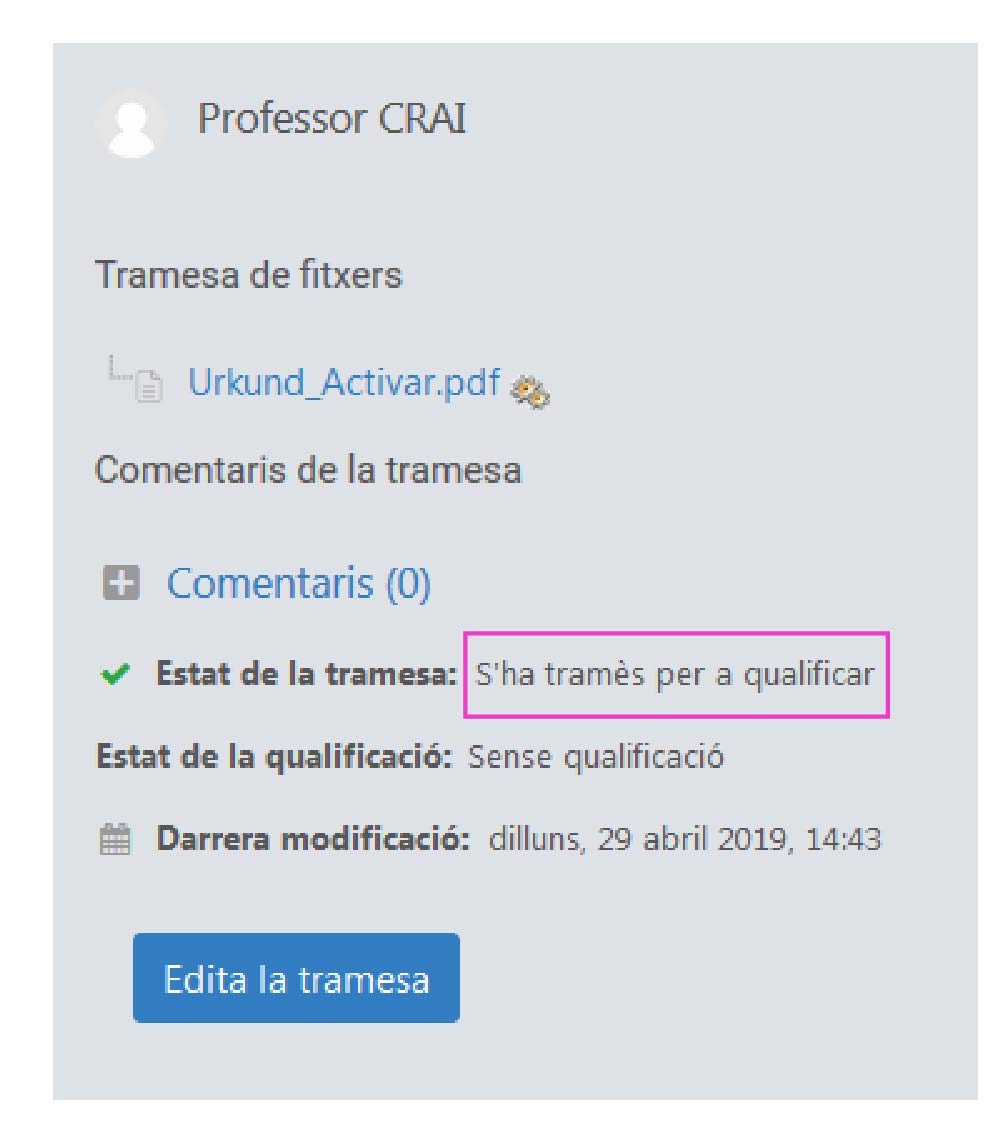
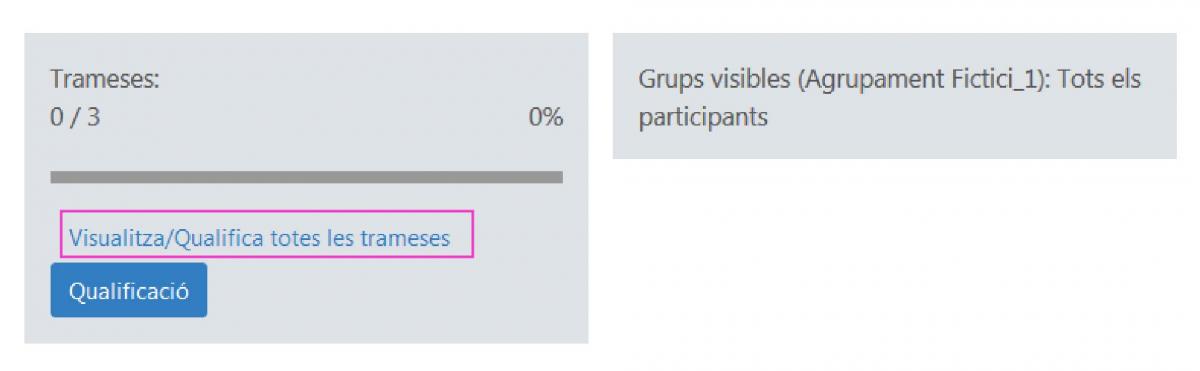
As a teacher, once the students have uploaded the files, if we go to the section View/Grade all submissions
Files in the submission will also show the gear icon with the same message:
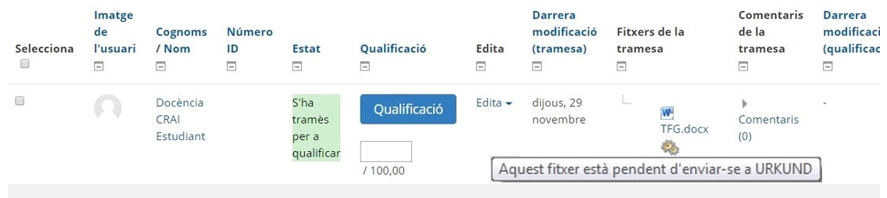
The submission of the document can take between 10-15 minutes.
Once the file has been sent to URKUND, the message changes: "This file has been sent to URKUND and is now waiting for the analysis to be available".
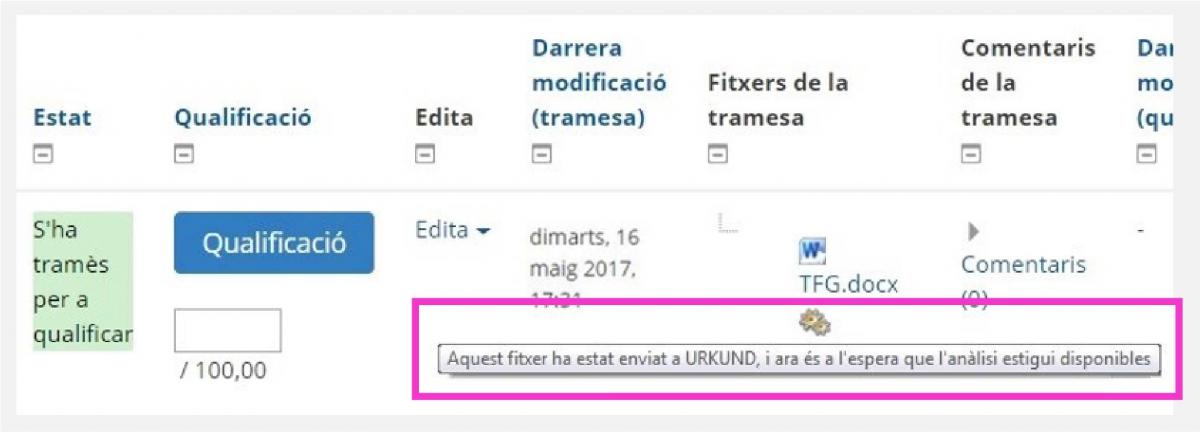
The learner will also see the same message if he/she enters the task.
The document will be analysed by Urkund.
The process can take a few minutes and at most 24 hours.
The similarity analysis is carried out by analysing different sources such as public documents accessible on the internet, publishers and own repositories, whether public or private. From this, a report is drawn up with the degree of coincidence of the document being compared and references to coincidences with other documents so that the teacher can evaluate it.
3. Receipt of the result of the analysis:
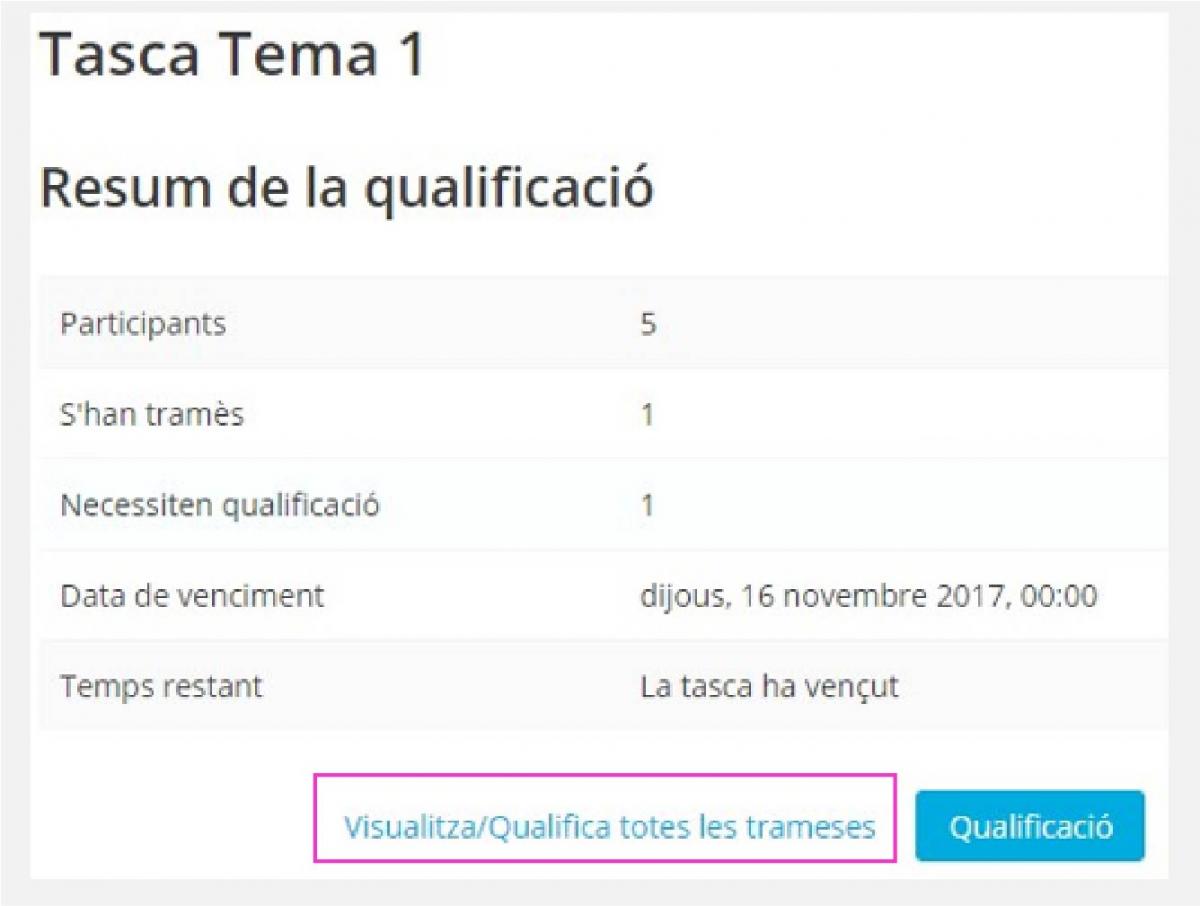
a. Enter the task, in the section Visualise/Grade all submissions:
b. In the File Submission column, the result appears under the file name:
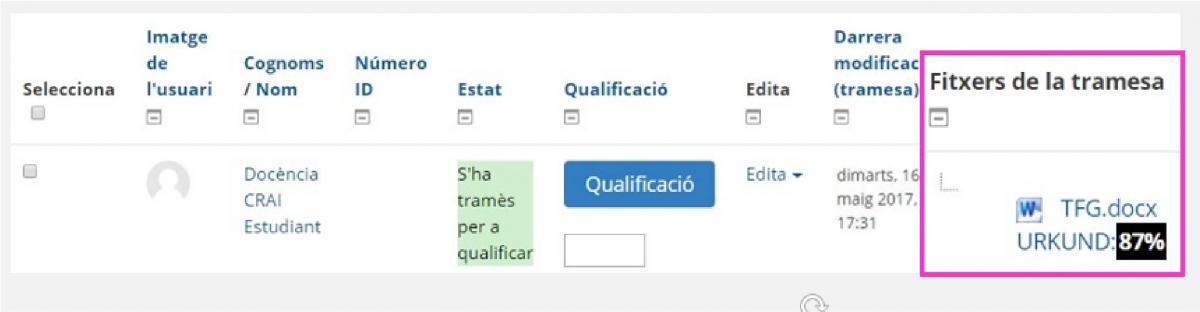
The percentage indicates the degree of similarity of the document content with the information found by Urkund.
c. Click on the URKUND link next to the task name to open the full report.
d. A page with the results report will open in a separate tab to analyse the similarity of the document.
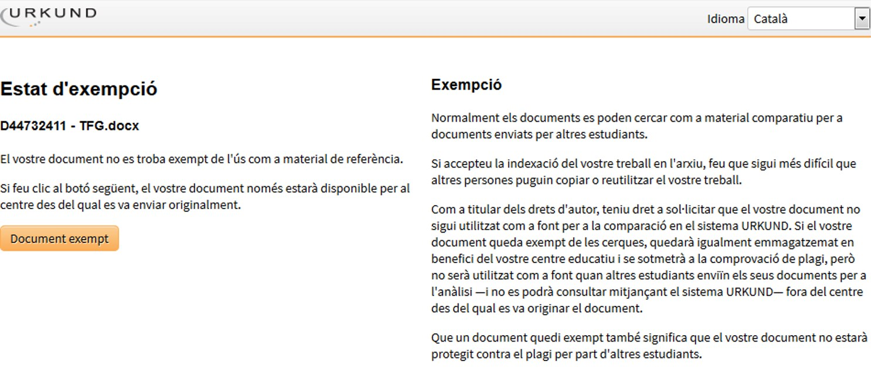
At this stage, the learner, next to the name of his/her assignment, will see the link "Opt-out".

If they click on it, they will be taken to a page where they can oppose their document being visible once it has been included in the Urkund database by clicking on the "Exempt document" button if they so wish. But it will be used to check it against all the documents sent afterwards.
4. Particularity of the configuration of an activity Online task (without sending a document)
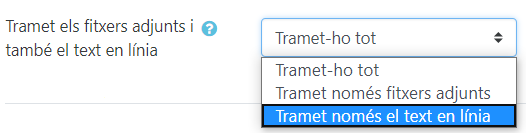
In the case of online tasks, it must be specified in the parameters:
- Submission type:

- Conector de plagio de URKUND:
5. Removing documents from the Urkund analysis space
If you need to delete documents that you have erroneously sent to URKUND, you must request it to the ATIC UB Management Service, providing the IDs of the documents to be deleted. See the information on how to make the request on the ATIC UB website.
You can also see how to activate Urkund in a task and other procedures in the interactive TACTIC pills of the CRAI UB.